Export and import Windows Firewall Rulesets
A KACE Cloud Firewall Ruleset is a collection of Windows Firewall Rules that can be applied to managed Windows devices. For more details, see Configure Windows Firewall Rulesets in the Library.
Quite often you can have a number of rulesets with similar contents and only a few modifications in each ruleset. To quickly create variations of similar rulesets, you can simply export a ruleset, import it back to KACE Cloud, and make the required edits.
Exported ruleset files are in the standard XML format, with the .kcwinfwrs file extension. When you export multiple rulesets at a time, they are combined in a WinFirewallRuleset.zip archive.
|
|
NOTE: You must extract the individual .kcwinfwrs files from the archive before importing them back in to KACE Cloud. Importing a collection of rulesets directly from a WinFirewallRuleset.zip archive is not supported. |

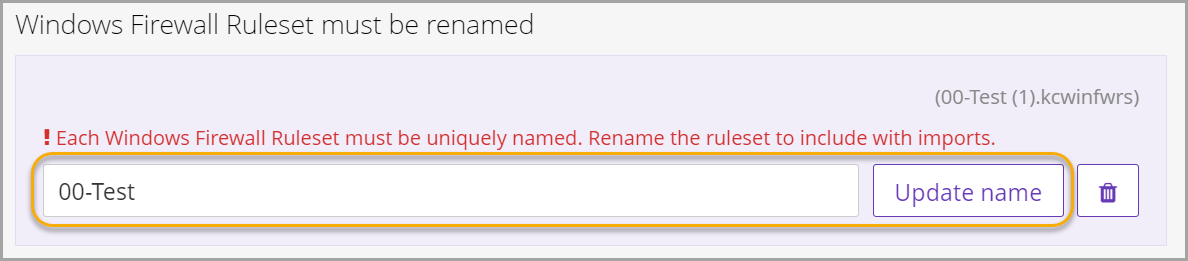
Each Windows Firewall Ruleset must have a unique name. When importing Windows Firewall Rulesets, if a ruleset with the same name already exists in KACE Cloud, you must rename the ruleset before importing it.
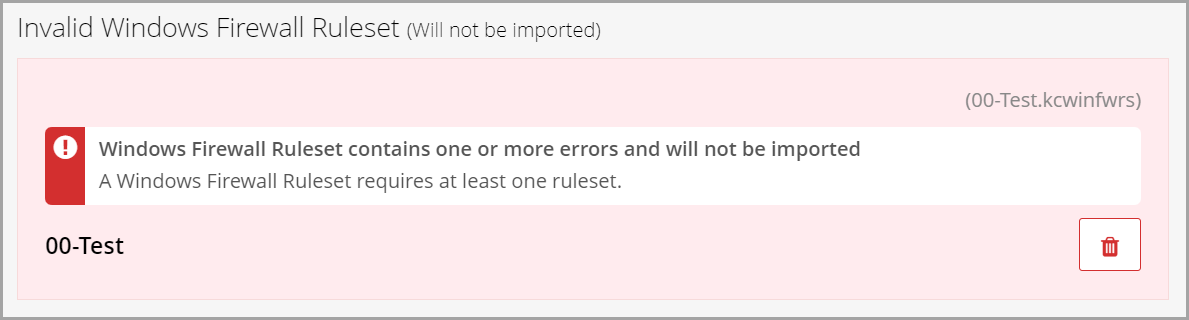
KACE Cloud validates each .kcwinfwrs file during the import process, preventing any invalid ruleset files from being imported.
To export Windows Firewall Rulesets:
- Select the Libraries tab in top navigation.
- Click Security.
- Select one or more Windows Firewall Rulesets in the list, and in the right panel, click Export.
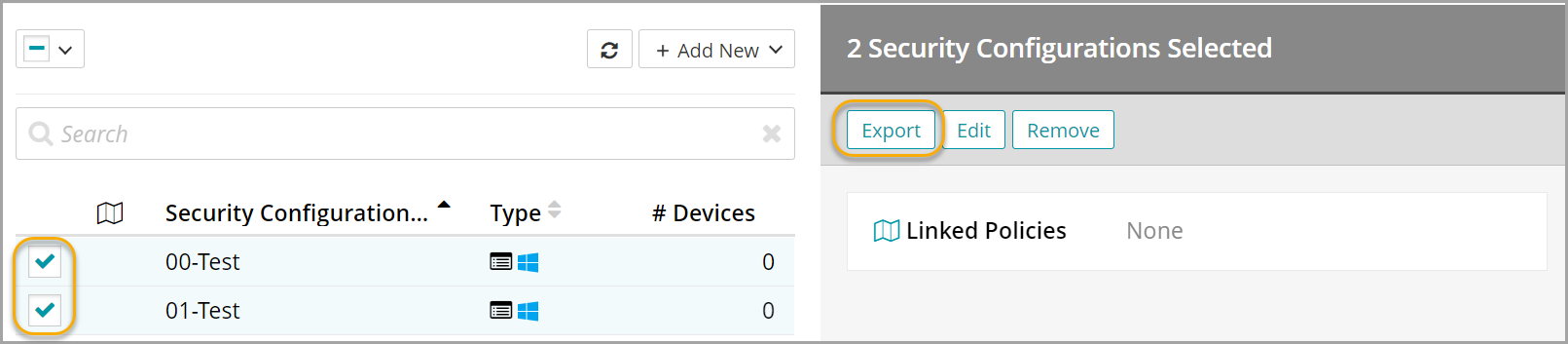
The file containing the exported rulesets is copied to your local device, to the default Downloads folder. If you exported only one ruleset, the .kcwinfwrs file appears. Multiple rulesets are exported as individual .kcwinfwrs files, combined in a WinFirewallRuleset.zip archive.
To import Windows Firewall Rulesets:
- Select the Libraries tab in top navigation.
- Click Security.
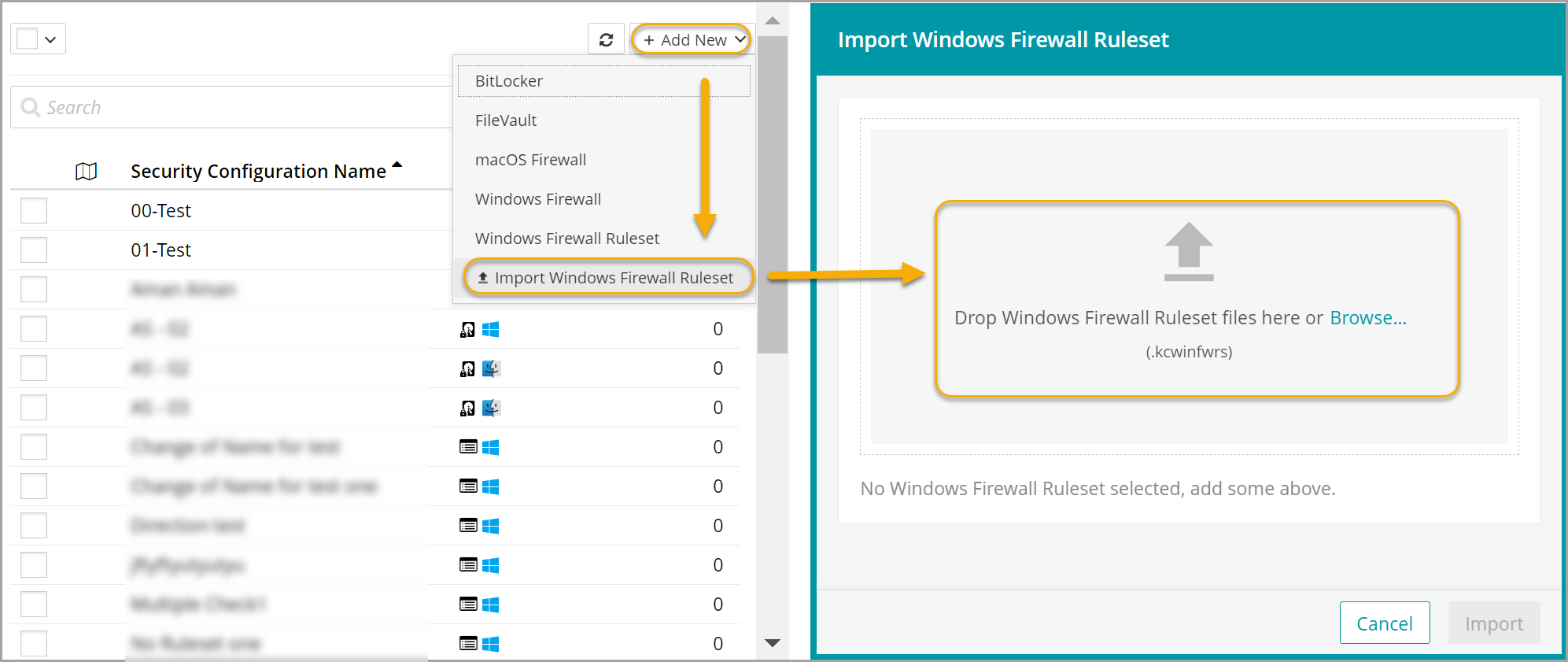
- Choose Add New > Import Windows Firewall Ruleset.
- Using the Import Windows Firewall Ruleset panel that appear on the right, in the indicated area, drag and drop a .kcwinfwrs file containing the Windows Firewall Ruleset that you want to import, or alternatively, click Browse and navigate to the file.
- If any issues are found in the file that is about to be imported, this is indicated on the page. Click the Delete icon, inspect the file, and correct any issues before trying again.
- If a ruleset with the same name already exists in KACE Cloud, rename the ruleset, as prompted, then click Update name.
- Using the same process, add more rulesets, if required.
- When done, click Import
The newly imported Windows Firewall Rulesets appear in the list.